Item is Reactivated
The Item is Reactivated trigger runs when an item that was inactive is reactivated, making it live and editable again. Users may want to reactivate a request for various reasons, including to edit it for future reuse. Use this trigger to update relevant statuses, notify stakeholders, or initiate follow-up actions.
The Reactive Request system action is available on item interfaces; makers can enable or disable this option in the interface header options.
The conditions available in this trigger are detailed in Conditions.
Name the Trigger
Select the trigger title or the edit icon,  , and provide a descriptive title for the trigger.
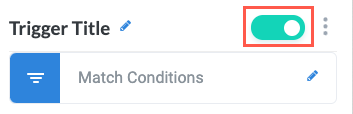
Turn Trigger Block On or Off
By default, trigger blocks are enabled and turned on. Select the toggle in the top right of the trigger panel to disable or turn it off.
When building a module, remember you can toggle triggers on and off rather than deleting them.
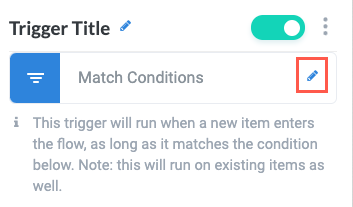
Change Trigger Type
To change the trigger type, select the edit icon, , and select the new trigger type from the Change Type To dropdown.
Run Settings
Select the relevant checkbox to enable the trigger to activate under various conditions:
Run also on inner items - Trigger conditions evaluate on inner items in addition to parent items.
Run also on Intake items - Trigger conditions evaluate on items with an Intake-type status. For more information about status types, see Add and Customize Statuses.
Activate Trigger When
Add a condition group to define the conditions that determine when the trigger activates:
Add a Condition Group
In addition to defining individual conditions that activate a trigger, you can create a condition group that combines several related conditions. Condition groups allow you to organize complex conditions for the sake of visibility (for example, you might have three AND conditions that must be met and five OR conditions that can be met, which can be organized in two separate groups).
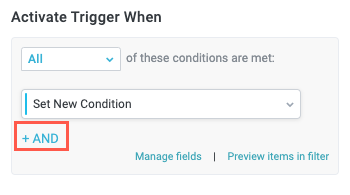
In the Activate Trigger When section, select + AND. The condition options dropdown displays.
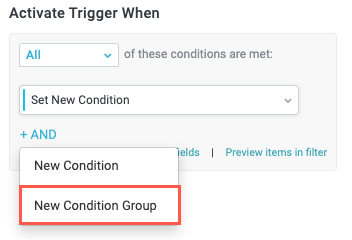
Select New Condition Group. A new condition group section displays.
Select the default name, New Conditions Group, or the pencil icon,
, to rename the condition group.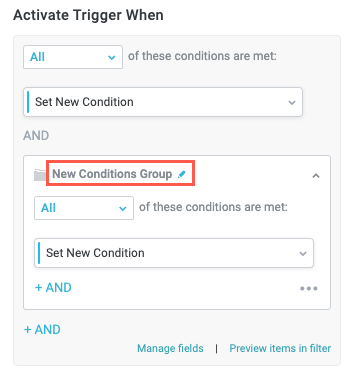
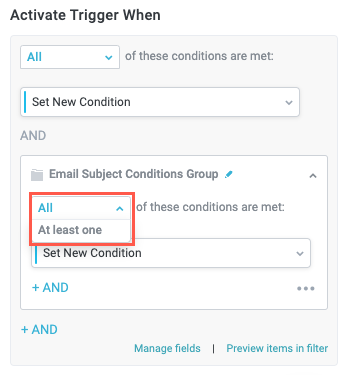
Select the dropdown to choose to run the trigger when All or At least one of the conditions are met. This option defaults to All.
Selecting All makes the condition inclusive, adding an + AND button to the bottom of the section, while selecting At least one makes the conditions exclusive, adding an + OR button.
Follow the process of adding a new condition as described in Set New Condition.