Create and Configure Playbooks
A Playbook is a document-style view of one intake and orchestration flow in your solution. Each Playbook shows, on a single page, the information requesters provide when they start a request, how the request is classified into a policy, and the reviews and processing that run for that policy.
Playbooks let process owners understand and change how a process works without building modules or editing preference tables. You can edit a Playbook directly, or ask Navi to make changes for you, including drafting a new Playbook from a policy document.
Playbooks are available in Tonkean standard solutions, including the Core Standard and ProcurementWorks. If you do not see Playbooks in your solution, contact your customer success manager or Tonkean Support for more information.
Who Uses Playbooks
Process owners review and change Playbooks. Process owners are system users with a limited view of the Solutions Studio that shows only Preferences and Advanced Preferences, without modules, flows, or workspace apps. A board admin assigns process owners from the solution's Overview tab.
Makers can do everything process owners can, and also set up and customize the pages that Playbooks are built on.
Find Your Playbooks
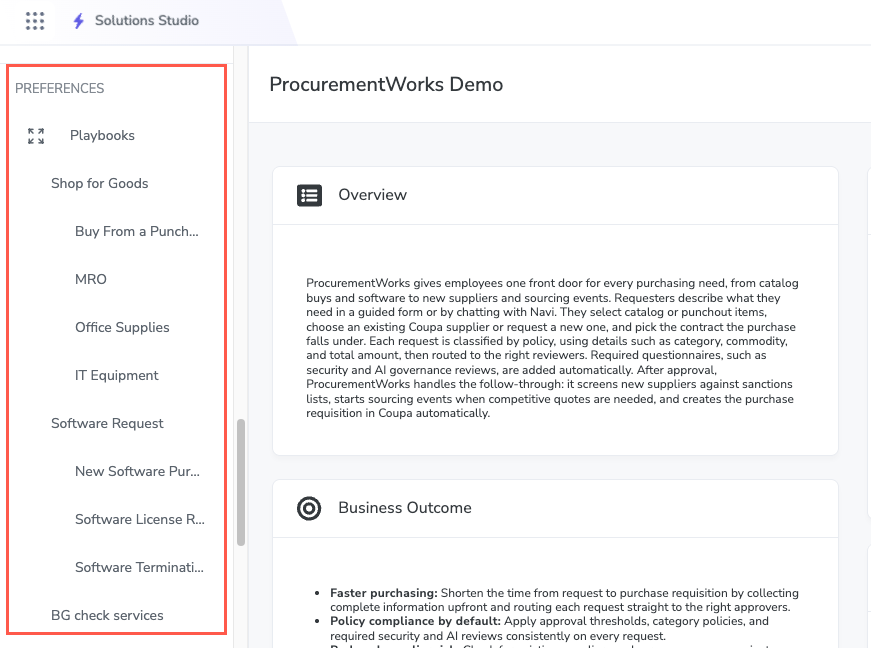
In the Solutions Studio, Playbooks appear in the left panel under Preferences. The classic preference pages are under Advanced Preferences, which is collapsed by default.
There is one Playbook for each intake experience, which is an option requesters choose when they start a request. The list follows the same hierarchy and order that requesters see. Some entries are headings that group related Playbooks. For example, Shop for Goods might group the MRO, Office Supplies, and IT Equipment Playbooks. A heading has no intake flow of its own, so selecting it opens its first Playbook.
When a new intake experience is added to the solution, its Playbook appears in the list automatically.
What a Playbook Includes
Each Playbook opens with the name and description of its intake experience, followed by two sections.
1. Before the request is submitted - The Intake Flow lists the steps requesters complete, from Start to Submit, whether they use forms or Navi chat. You can preview each step and the questions it asks. Steps marked View only, such as custom steps and the summary step, can be previewed and their step settings changed, but their content cannot be edited from the Playbook.
2. After the request is submitted - How this request is classified is a flowchart of the conditions that sort a submitted request into a policy, such as the total amount or the type of request. A catch-all policy, usually named Default, applies when a request matches no other policy.
Policies describe what runs for each policy, in order:
Post-intake: Runs after intake is completed.
Reviews: Runs after post-intake is completed.
Processing: Runs after all reviewers approve.
If an intake experience does not have an intake flow yet, its Playbook shows No flow is assigned to this Playbook yet.
How Changes Take Effect
Changes you make in a Playbook, including changes Navi applies, are saved to the solution's draft. A change to one Playbook can affect others—for example, when several Playbooks use the same policy. Changes do not reach requesters until the solution is published. Select Test Intake to try your unpublished changes the way that requesters will see them.