Configure Playbook Intake Flows
As a maker or process owner, you can change the intake flow for any playbook: the steps requesters complete, the settings for each step, and the questions each step asks. Changes are saved to the solution’s draft and don’t reach requesters until the solution is published.
Because playbooks are a streamlined configuration layer on top of solution preferences, the same reusability concepts apply. More than one playbook can use the same intake flow or step, and more than one form can use the same question. When you edit something that’s shared, a message tells you, and you can usually choose to change it everywhere or make a copy.
To have Navi make intake flow changes for you, see Create and Edit Playbooks with Navi.
Configure the Intake Flow
The 1. Before the request is submitted section of a playbook shows the intake flow, which is the information collected from requesters before they submit a request. Requesters complete the same steps whether they fill in forms or chat with Navi.
The intake flow section includes the following:
Intake Flow: {Flow name} - The name of the intake flow the playbook uses, with a description of the information it collects.
Start - The point where intake begins.
{Numbered steps} - The steps requesters complete, in order, such as selecting catalog items, uploading supporting documents, or answering a form. Each step has its own display name and description.
Steps marked View only, such as custom steps and the summary step, can be previewed and their step settings changed, but their content cannot be edited from the playbook.
Submit - The point where intake is completed and the request is submitted.
Hover over the intake flow to see its available options (including the intake flow as a whole and its individual steps):
Manage Steps - Edit the intake flow, including selecting a different existing intake flow, rearranging flow steps, and adding existing steps. For more information about managing and editing steps, see Manage Intake Flow Steps.
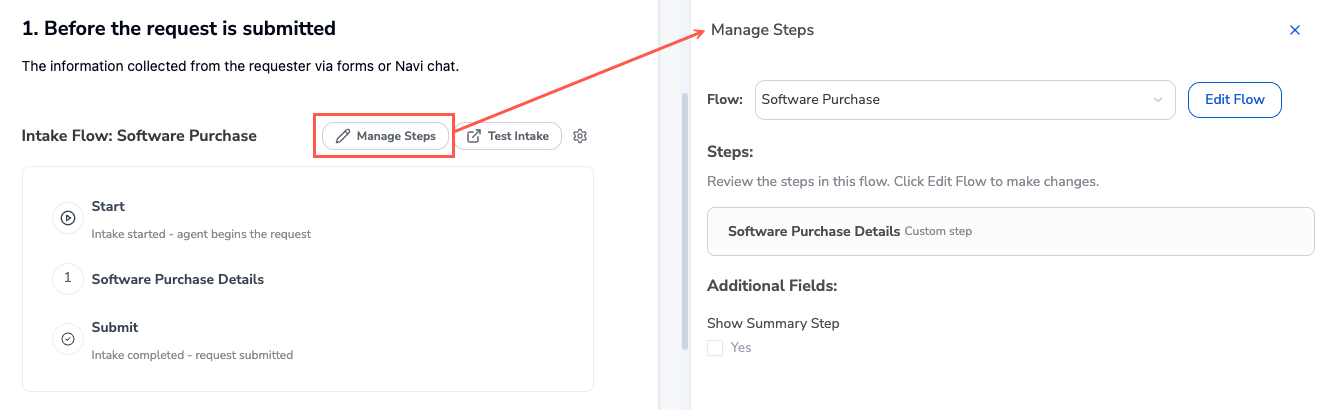
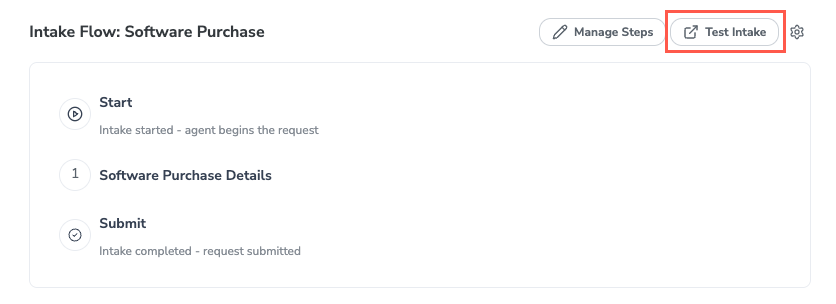
Test Intake - Open the intake experience in Build mode to see the flow from the requester's point of view.
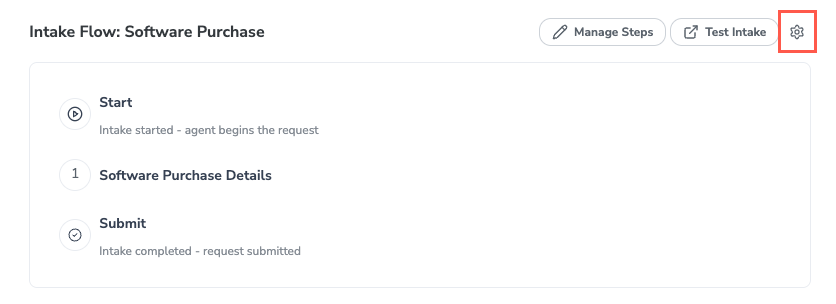
Edit in Advanced Preferences - Select the settings icon to open the Standard Flows preference page in a new tab for in-depth configuration.
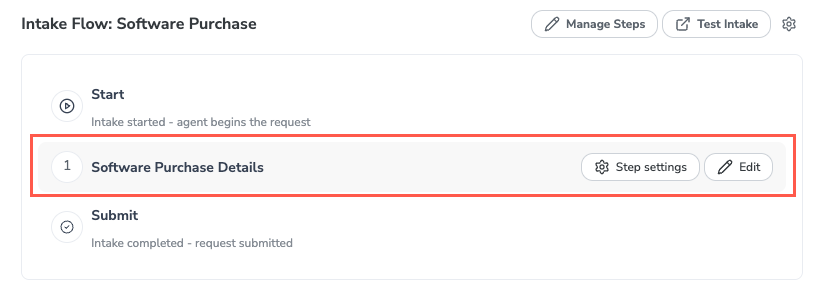
The intake flow lists the steps requesters complete, in order. Hover over a step to see its options:
Step settings - Change how the step is set up, such as its title and how it appears on the intake tracker. Available on every step.
Edit - Open a form step to add and change its questions.
View - Preview a step marked View only, such as a custom step or the summary step. Its content cannot be edited from the playbook.
Manage Intake Flow Steps
Each playbook uses one intake flow, which sets the steps that requesters complete and in what order. Hover over the intake flow and select Manage Steps to open the Manage Steps panel.
Change the Intake Flow
In the Manage Steps panel, select a different flow from the Flow dropdown.
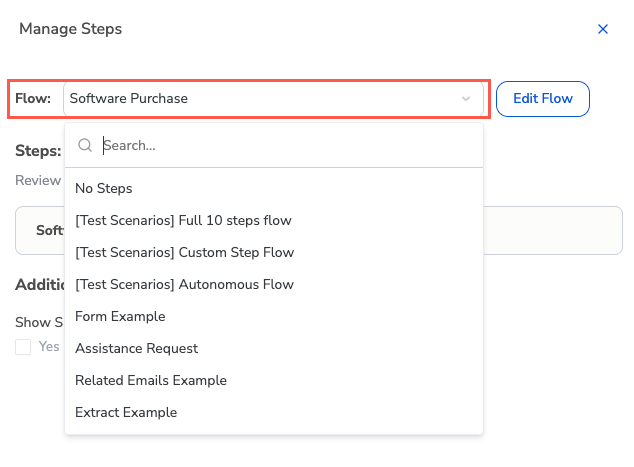
The playbook now uses the steps from the selected flow. If other playbooks already use that flow, all of them share it.
Edit the Steps in a Flow
An intake flow is the sequence of steps requesters complete before they submit a request, such as selecting catalog items, uploading supporting documents, or filling in a business case form. Editing the steps in a flow changes that sequence: which steps requesters see and in what order. It doesn’t change what’s inside a step. To change a step’s questions or settings, see Manage Step Questions and Edit Step Settings.
You might edit a flow's steps for several reasons:
Collect new information - Add a step when a policy change requires new details, such as budget information.
Shorten intake - Remove steps requesters no longer need to complete.
Improve the order - Rearrange steps to match how requesters think about the request, such as choosing items before uploading documents.
Add a final review - Turn on the summary step so requesters can check their answers before submitting.
If other playbooks share the flow, the panel shows how many, because editing the flow here changes it everywhere it is used. To change the steps for this playbook only, select Duplicate. A copy of the flow is created and assigned to this playbook. To change the shared flow, select Edit all.
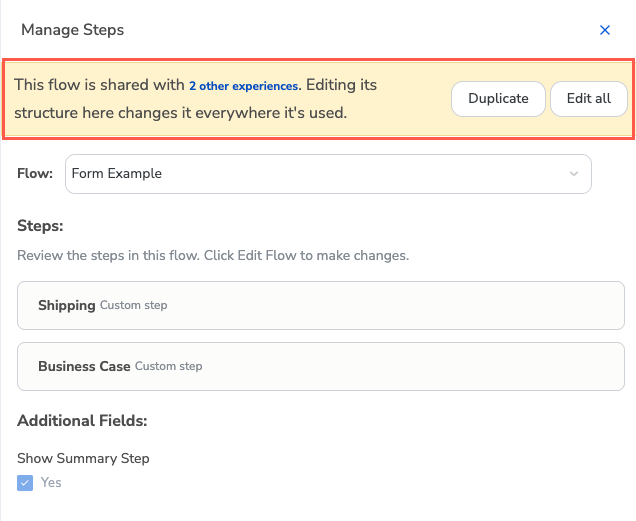
To edit the steps in a flow, follow the steps below:
In the Manage Steps panel, select Edit Flow, or Edit all for a shared flow.
Make your changes:
To change the order, drag a step by its handle.
To change a step's settings, select its edit icon. The Edit step window displays. See Edit Step Settings.
To remove a step from the flow, select its delete icon. The step stays in the shared library.
To add a step, select Add steps from shared library. Select a step to preview it, then select Add step.
To show or hide the summary step before submission, select or clear Show Summary Step.
To change the description shown under the intake flow name, update Flow Description.
Close the panel. Your changes appear in the playbook as you make them.
A flow can have up to 10 steps. The summary step does not count toward the limit. When a flow has 10 steps, Add steps from shared library is not available.
Edit Step Settings
Hover over the step and select Step settings. The Edit step: {Step Name} window displays.
If the step is used in other flows, the window shows how many. Choose whether to save your changes to All flows that use it or This playbook only, or select Duplicate to create a copy of the step.
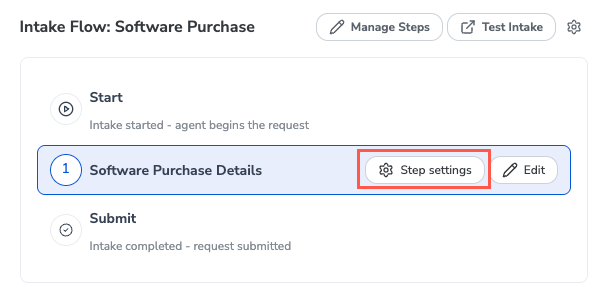
Update the settings you want to change. The settings available depend on how your solution is set up, and typically include:
Description - Enter the description that appears under the step name in the playbook.
Intake Step Configuration - Select the form that the step loads its questions from.
Skip Conditions - Define the conditions under which requesters skip this step.
Form Intake - Step Title - Enter the title that appears at the top of the step during intake. If you leave this blank, the step name is used.
Form Intake - Display in Wide Mode - Turn on to display the step in wide mode during intake. This setting is off by default.
Form Intake - Display Name on Tracker - Enter the name that appears for this step on the intake tracker. Leave this blank to hide the step from the tracker. By default, this is set to the step name.
Agent Intake - Step Type - Select whether the step is a form step or a custom step.
Agent Intake - AI Pre-fill Instructions - Enter instructions that tell Navi how to pre-fill this step for the requester.
Agent Intake - AI Pre-fill JSON Schema - Enter the JSON schema that defines the information Navi pre-fills.
Agent Intake - Include UI View in Intake Agent - Turn on to include the step’s view when requesters complete intake through Navi chat.
Agent Intake - Embed UI View in Chat - Turn on to embed the step’s view directly in Navi chat.
Agent Intake - Submit Button Label - Enter the label for the step’s submit button.
Agent Intake - Additional schema fields to include in step submission context - Enter any additional request fields to include when the requester submits the step.
Tracker - Conditions to not show as standalone tab - Enter
true,false, or a condition to control when the step does not appear as its own tab on the tracker.Tracker - Tab Name - Enter the tab name to use when the step appears as its own tab. If you leave this blank, the step name is used.
Tracker - Tab Icon - Select the icon to use when the step appears as its own tab. If you leave this blank, the default icon is used.
To open the step's underlying preferences, select the advanced settings icon,
 , in the bottom-left corner of the window. The preference page opens in a new tab.
When finished, select Save.
Manage Step Questions
To add, edit, rearrange, and generally manage the questions in an intake step, hover over the intake flow step and select Edit. The step questions panel displays.
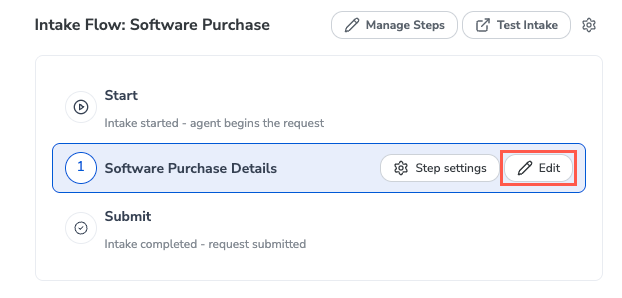
Add a Question
To add a new question, follow the steps below:
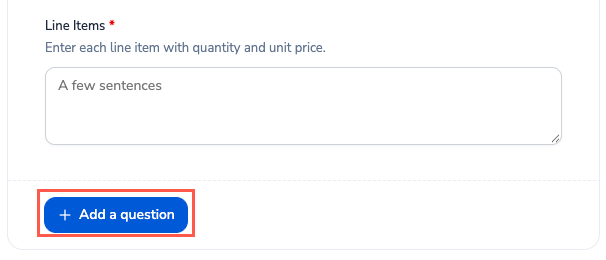
Scroll to the bottom of the step questions panel and select + Add a question. The Add a question window displays.
Do one of the following:
To add an existing question to the step, search for it or scroll through the list. Select Add on the relevant question to add it to the step.
Design your form questions to be reusable wherever possible; this approach can dramatically reduce the number of questions to manage in your solutions and generally simplifies solution upkeep.
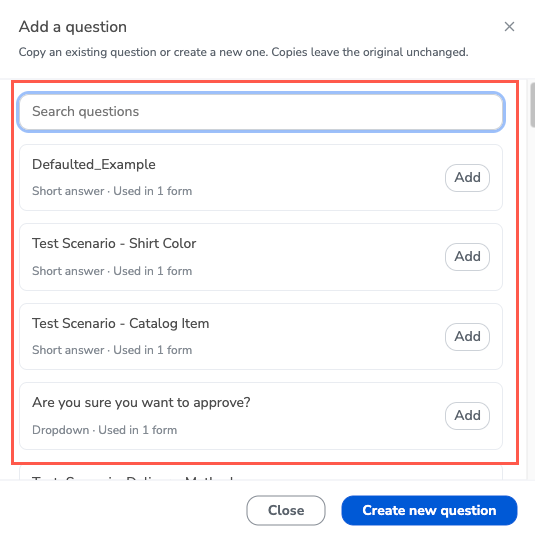
To create an entirely new question, select Create new question. The New question window displays.
Configure the question details by filling in the relevant fields. For details about each field, see Question Settings.
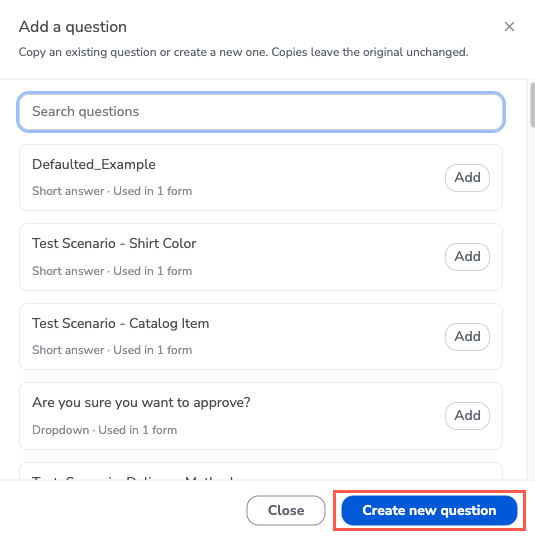
For a new question, select Save when finished. Existing questions are added as soon as you select Add.
Edit a Question
To edit a question, follow the steps below:
Select the question settings icon,
 . The Question settings window displays.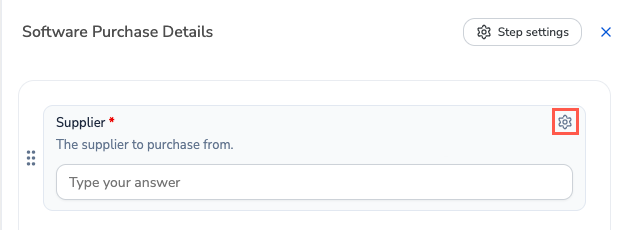
Configure the question details by filling in the relevant fields. For details about each field, see Question Settings.
When finished, select Save.
You can also select Duplicate to copy the question or Remove to remove the question from the step.
Rearrange Questions
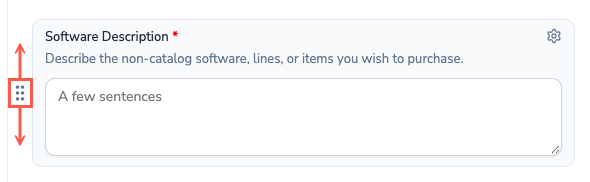
You can rearrange questions on a step to change the order in which they appear to requesters.
To rearrange questions on a step, select the drag handle for the question and drag it up or down in the step.
Remove a Question
In the Question settings window, select Remove, and then confirm.
The question is removed from this form. Other forms that use it keep it.
If no other form uses the question, the step shows a message that the question is no longer used by any form. To delete the question permanently, select Delete on that message, and then confirm.
Question Settings
The following settings are available when you add or edit a question:
Question - The question title requesters see on the form. It's required and must be unique among this form's questions. Save stays disabled until you enter a name, and shows "A question with this name already exists" for a duplicate.
Hint underneath - Optional help text shown under the question title on the form. Use it for examples, formatting rules, or context.
Answer type - The type of input the user provides, including Short answer, Long answer, Number, Date, Dropdown, and so on.
For Search questions, see Set Up a Search Question.
Your Answer type selection determines what other configuration fields display. For example, if you select Number, fields like Display format and Decimal places display, whereas if you select Dropdown, an Options field displays where you define the dropdown options.
Changing the answer type clears the type-specific settings and starts over with the new type's default settings.
Size on the page - Define how much of the form row the question takes up. 1/1 is full width and the default. Setting this option to 1/2 lets two questions display side by side when they're positioned together.
Required - Define whether the question is required. If enabled, requesters will be unable to submit the form without answering this question.
Select Conditions to open a condition group where you can define the conditions in which the question is required.
Select Advanced settings for additional configuration options:
Default value - Define the value that is prefilled on the form when opened.
Summary name - Enter a name to display for the question summary.
Validation regex - Provide a regular expression whose conditions the answer must meet before the requester can submit the form. This option does not apply to Date questions.
Validation message - Define the error that displays when the answer doesn't match the Validation regex.
Hide conditions - Define the conditions that determine when the question is hidden.
Show in summary conditions - Define the conditions that determine when the question's answer displays on the intake summary step.
Set Up a Search Question
Search is the only answer type that needs its own setup. Instead of choosing from options you type in, requesters search a preference table or data source and select a result, such as a supplier, commodity, or cost center. Because answers come straight from the source, they stay accurate and up to date, and requesters do not need to know exact names or codes.
When you select the Search answer type, set up the question:
Search a preference table - Turn on to search a preference table instead of a data source.
Preference table or Data source - Select where requesters search. For a data source, also select the Entity.
Saved value field - Select the field to save when a requester selects a result.
Display field, Description field, Sort field, and Sort direction (optional) - Select how results appear and in what order.
Allow multiple answers - Turn on to let requesters select more than one result.
Conditions (optional) - Enter a formula to limit which results appear.
Additional values to save - Turn on, and then select other fields to save from the selected result.
You must select a source and a saved value field before you can save the question.
Test and Publish Changes
Your changes are saved to the solution's draft. To try them before they go live, use one of these options:
Test Solution - Opens the requester experience in a new tab with your unpublished changes. This is a preview experience, not a published version.
Test Intake - Hover over a playbook's intake flow and select Test Intake to open that intake in a new tab.
When you are ready, publish your solution make your changes available to requesters.