Configure Playbook Policies
You can find the playbook policies in section 2. After the request is submitted. This section includes a flowchart of all the policies that display how the request is classified.
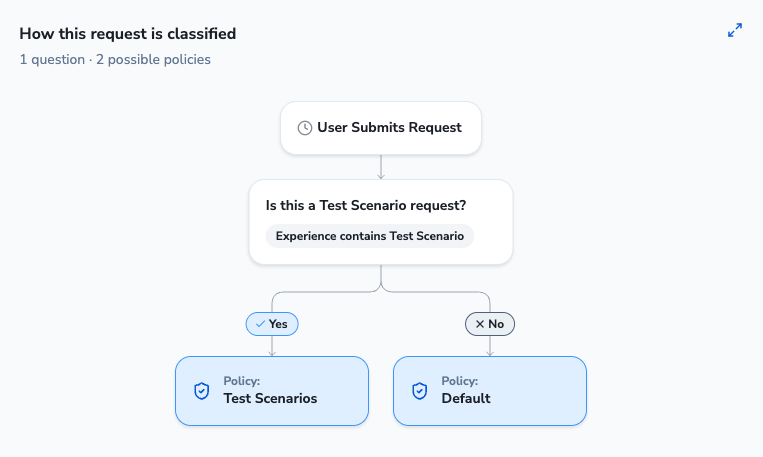
The Policies section is below the flowchart—it lists each policy that can apply to the playbook and what runs at each stage. When a request is submitted, it is classified into the highest-priority policy whose match conditions it meets. Policies with a higher Priority number are checked first.
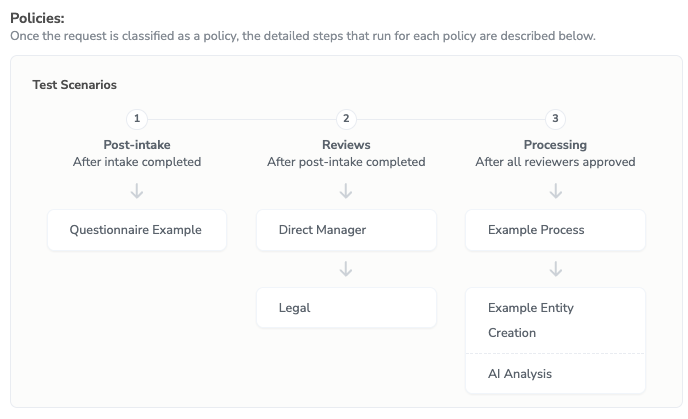
A policy can be used by several playbooks. Changing its match conditions can remove it from the current playbook, and renaming it can affect in-progress requests that reference its current name.
A policy whose match conditions are true matches every request, so it works as a catch-all. In the standard solutions, this is the Default policy. Give the catch-all policy the lowest priority. Policies with a lower priority than the catch-all never apply, and they do not appear in the playbook. Blank match conditions never match.
To edit a policy, follow the steps below:
On the policy, select Edit Policy Settings. The Edit Policy Settings panel displays.
Update the policy settings:
Name - Enter the policy name that appears in the playbook.
Description - Enter a short summary of what the policy covers.
Match Conditions - Define the conditions a request must meet for this policy to apply, such as a minimum total amount. Build the conditions in the condition group, or select Use text input to enter them as text.
Priority - Enter a number to set the order in which the policy is checked. Higher numbers are checked first.
When finished, select Save. The classification flowchart and the policy update immediately.
To change a policy's reviews or processing steps, ask Navi, or update the policy on the Category Policies page under Advanced Preferences.
Test and Publish Changes
Your changes are saved to the solution's draft. To try them before they go live, use one of these options:
Test Solution - Opens the requester experience in a new tab with your unpublished changes. This is a preview experience, not a published version.
Test Intake - Hover over a playbook's intake flow and select Test Intake to open that intake in a new tab.
When you are ready, publish your solution make your changes available to requesters.