Create and Edit Playbooks with Navi
Navi can build and change playbooks for you. Upload a policy document and Navi drafts a new playbook from it, or describe a change to an existing playbook in plain language. In both cases, Navi proposes a plan, you review it, and Navi applies the changes to your solution’s draft.
Nothing reaches requesters until the solution is published, so you can test and adjust Navi’s changes first.
Create a Playbook from a Policy Document
The easiest way to create a new playbook is to upload an existing policy document and have Navi draft a playbook from it. Navi finds the questions requesters must answer, who approves at which thresholds, and what happens after approval. You review Navi's plan, apply it, and then adjust the new playbook as needed. Nothing goes live until the solution is published.
Navi is Tonkean's built-in AI agent that can help you create and edit playbooks.
Prepare Your Policy Document
You can upload PDF, DOCX, or Markdown files up to 20 MB each. Navi uses each document to create a playbook or update an existing one.
For best results, the document should clearly describe:
Scope: Which requests the policy covers, such as new purchases, renewals, and expansions, and which requests are out of scope.
Information that requesters must provide: Each item and when it is required. For example, a business case is required only when the estimated budget is USD 25,000 or more.
Approvals: Who approves, in what order, and at which amount thresholds.
Reviews and questionnaires: Additional reviews, such as security or AI governance reviews, and when each is required.
What happens after approval: The processing steps that follow, such as sourcing, supplier onboarding, or creating a purchase requisition.
Create the Playbook
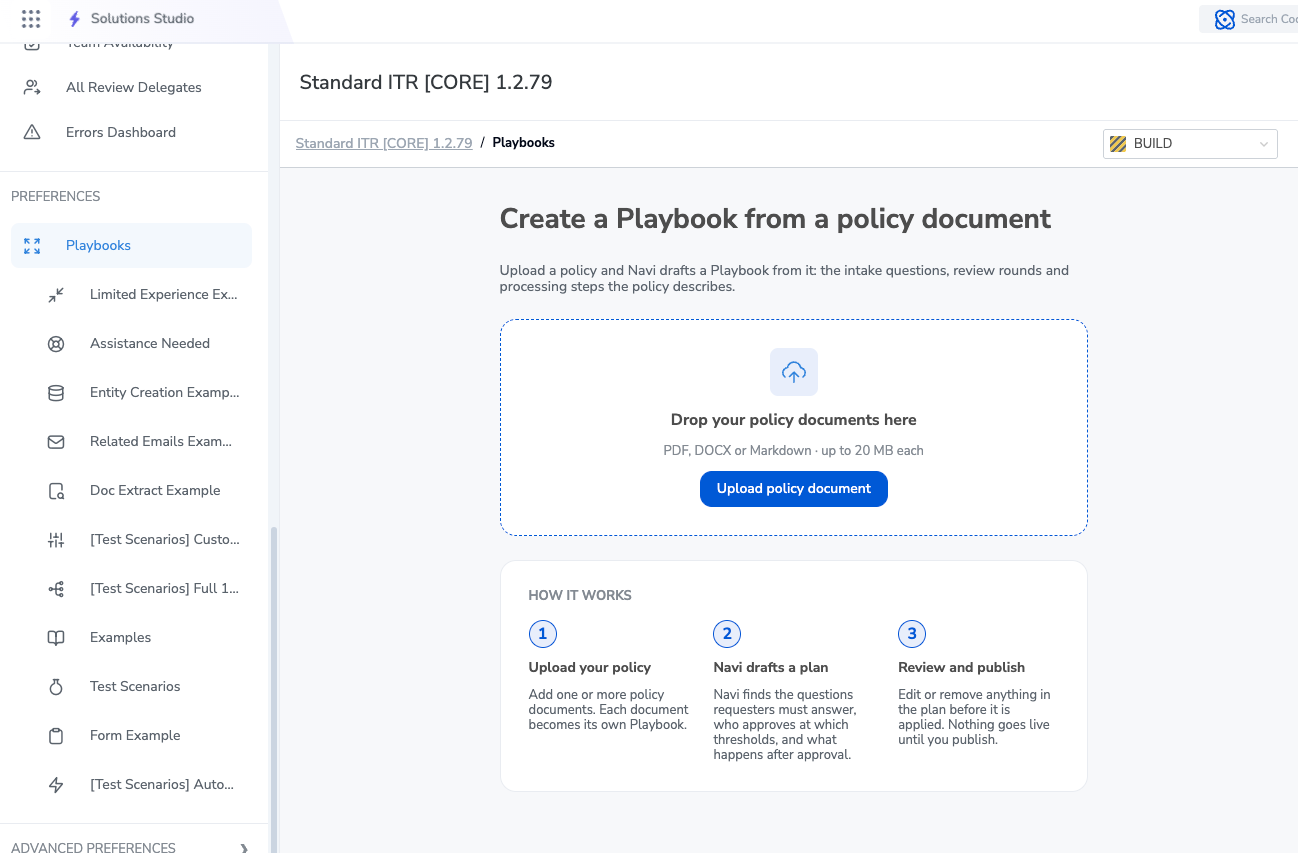
In the left panel, under Preferences, select Playbooks. The Create a Playbook from a policy document screen displays.
Drag your policy documents into the upload area, or select Upload policy document.
Navi opens in a side panel with the request Build Playbooks from my policy documents and your documents attached.
Send the request. Navi reads the documents and drafts a plan.
Review the plan that Navi drafts. For details, see Review the Plan.
To change the plan, reply to Navi in the chat. For example, if Navi plans to update an existing playbook and you want a new one, reply with something like: Create a new playbook for software purchases under Shop for Goods. Navi drafts an updated plan.
Select the Apply button, which shows the number of changes in the plan (for example, Apply 6 changes).
Navi applies the changes to the draft and summarizes the result.
You can also start from the Navi panel. Select Navi in the top right, select Build Playbooks from your policy documents, and attach your document.
Review the Plan
Navi summarizes what the plan does, then lists each change in a plan card. Changes are grouped by type, such as intake experiences, questionnaires, questions, and policies.
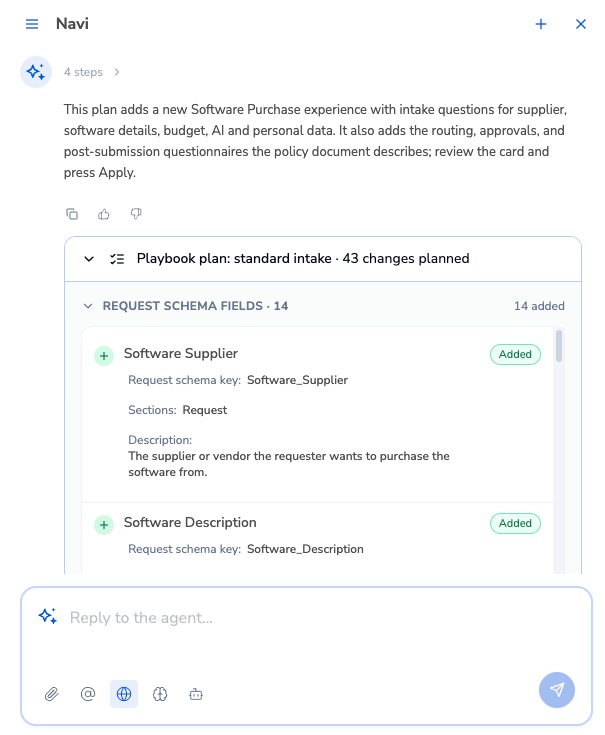
Each change shows the following:
Whether it is Added or Updated.
For updates, the current value and the new value, such as a policy's match conditions or required questionnaires.
The bottom of the card shows how many changes are ready to apply.
Check that the plan matches your policy before you apply it, especially thresholds, approvers, and which playbook the changes go to.
After You Apply the Plan
Navi lists what it applied to the draft. If Navi could not apply a change, it explains why and suggests how to fix it. To reverse the applied changes, select Undo changes.
The new playbook appears in the left panel under Playbooks. Before you publish:
Open the new playbook and compare it to your policy. Correct any details that do not match, such as a threshold in a policy's match conditions.
Select Test Intake in the Intake Flow section to try the intake experience as your requesters will see it.
To edit the playbook, reply to Navi with your specific requests or edit the playbook directly in the playbook. For more information about editing a playbook with Navi, see Edit a Playbook with Navi.
When you are ready and have made any other updates to the solution, you can publish it.
Test and Publish Changes
Your changes are saved to the solution's draft. To try them before they go live, use one of these options:
Test Solution - Opens the requester experience in a new tab with your unpublished changes. This is a preview experience, not a published version.
Test Intake - Hover over a playbook's intake flow and select Test Intake to open that intake in a new tab.
When you are ready, publish your solution make your changes available to requesters.